Frequently Asked Questions
How do I create a cut list?
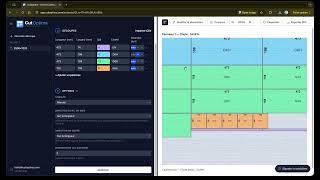
Enter your raw sheet dimensions (length × width) in the "Raw Sheet" section, then add the pieces you need to cut with their dimensions and quantities. Give your project a name if you want, then click "Optimize" to generate the optimal cutting layout.
How does the optimization work?
The optimizer calculates the most efficient way to arrange your pieces on raw sheets to minimize waste. It uses an advanced algorithm that considers piece dimensions, quantities, and optional constraints like blade kerf, grain direction, and rotation. The result shows you how many sheets you need and where to place each piece.
What is blade kerf and how do I set it?
Blade kerf is the width of material removed by the saw blade during each cut. Setting the kerf value (in mm) ensures the optimizer accounts for this material loss, resulting in more accurate layouts. You can set it in the Options section.
How does wood grain direction work?
You can set a grain direction on your raw sheet (along length or along width) in the Options section. Each piece can then specify which of its dimensions should follow the grain. This ensures pieces are cut respecting the wood grain pattern, which is essential for visible surfaces.
Can I import pieces from a CSV file?
Yes, with the Worker plan or above. Click "Import CSV" in the pieces section. Your CSV file should have columns for length, width, and optionally quantity and label. The pieces will be added to your current list.
How do I export my results?
You can export your cutting layout as a PDF with precise measurements and piece details using the "Export PDF" button. You can also print adhesive labels matching standard label sheet formats (24 or 30 labels per page) using the "Labels" button. These features are available depending on your subscription plan.
Can I manually edit the cutting layout?
Yes. Click "Edit Layout" to enter edit mode. You can drag pieces to reposition them within a sheet, or drag them to another sheet. Collision detection with kerf ensures pieces don't overlap. Click "Save Layout" to save your changes, or "Reset to Original" to go back to the optimized layout.
What are the subscription plans?
CutList offers three plans: Free (2 active projects, 10 optimizations per day across all projects, PDF export, labels, cut direction, blade kerf), Worker (unlimited projects and optimizations, CSV import, print labels, move pieces), and Enterprise (unlimited everything, margin on panels, archive projects). One-shot 3-day access is also available.
How do I manage my account?
Click your email in the sidebar to access settings. You can change your password, switch language, and manage your subscription. You can also sign in with Google for quick access. Your projects and data are securely stored and accessible from any device.